
Overview
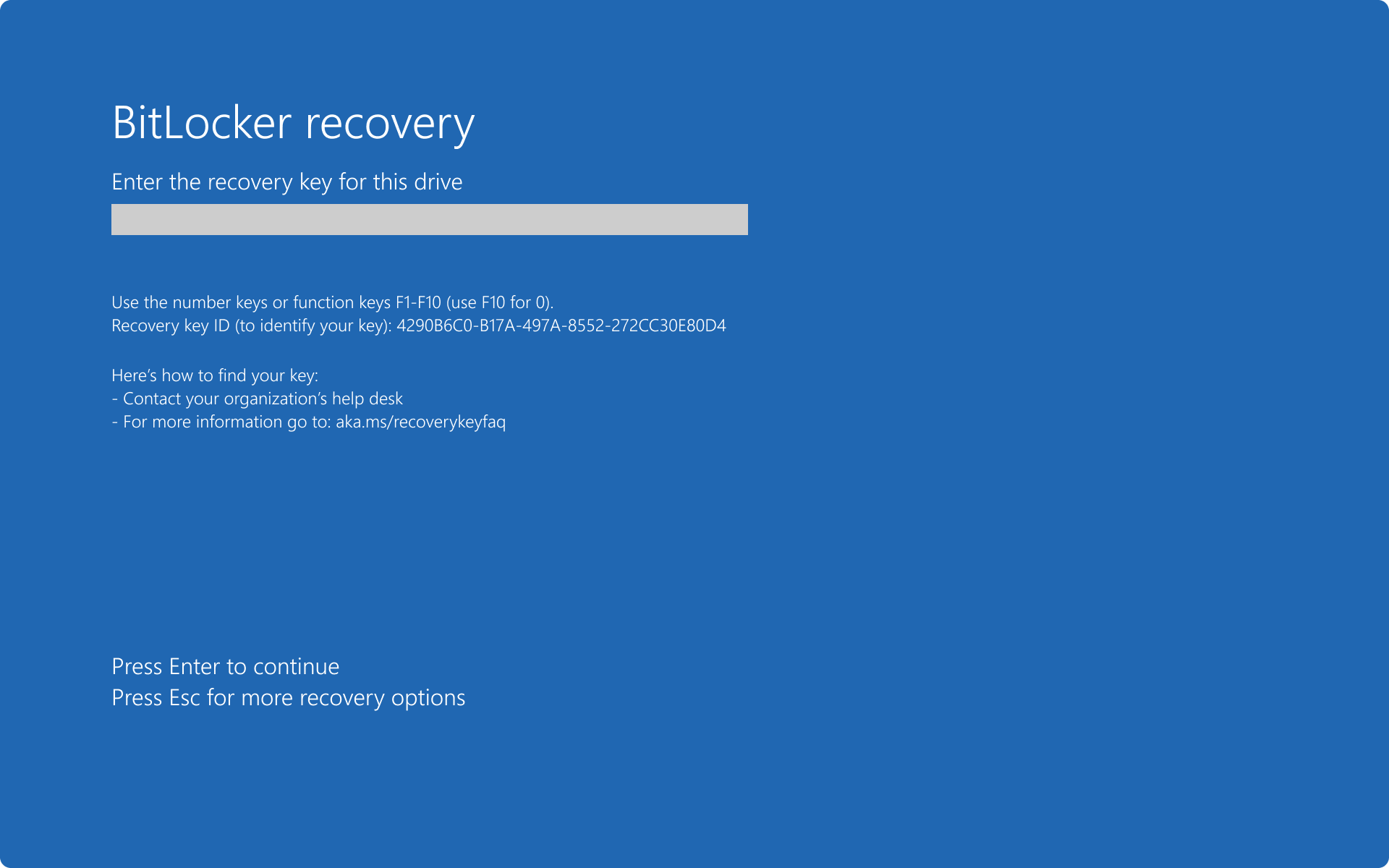
If your Windows computer starts and displays a blue BitLocker Recovery screen asking for a recovery key, do not panic.
BitLocker is a Windows security feature that encrypts your drive and helps protect your files from unauthorized access. If Windows detects certain security, hardware, firmware, or software changes, BitLocker may require additional verification before unlocking the drive.
To unlock the computer, Windows may ask for a 48-digit BitLocker recovery key.
In this article
- Why Is Windows Asking for a BitLocker Recovery Key?
- Step 1: Find the Recovery Key ID
- Step 2: Determine Whether This Is a Work or Personal Computer
- Step 3: Check Other Locations
- Step 4: Enter the Recovery Key
- What If You Cannot Find the Recovery Key?
- After You Regain Access to Windows
- Back Up Your BitLocker Recovery Key
- Information to Provide to BEMO Support
- Related Microsoft Resources
Why Is Windows Asking for a BitLocker Recovery Key?
Normally, BitLocker unlocks your Windows drive automatically.
However, Windows may request the recovery key when BitLocker detects a condition that it cannot automatically verify. This can include changes involving the computer's:
- Hardware
- Firmware
- Software
- Security configuration
Seeing the BitLocker Recovery screen does not automatically mean that your computer has been compromised or that the drive has failed. It means BitLocker requires additional verification before allowing access to the encrypted drive.
Step 1: Find the Recovery Key ID
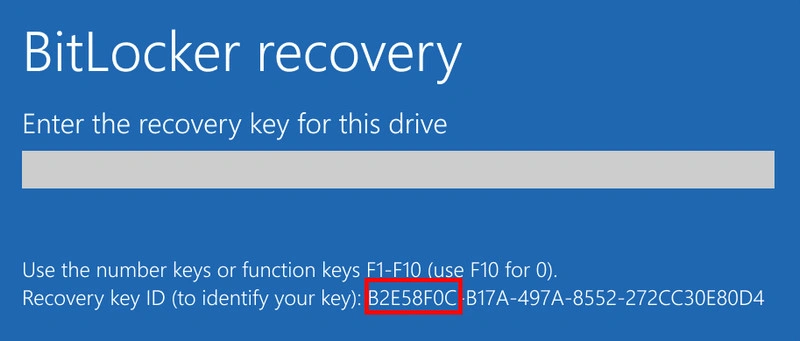
Before looking for your recovery key, check the BitLocker Recovery screen.
Locate the Recovery Key ID and write down or take a picture of its first eight digits.
For example:
Step 2: Determine Whether This Is a Work or Personal Computer
Where you look for the recovery key depends on how the computer was configured.
Work or School Computer
If the computer belongs to your company, school, or another organization, the recovery key may have been automatically backed up to your organization's account. It may also be managed by your IT department.
You may be able to retrieve the key by completing these steps:
- From another computer or mobile device, open:
View BitLocker recovery keys for your work or school account - Sign in using your work or school account.
- Select Devices.
- Locate the affected computer.
- Select View BitLocker Keys.
- Compare the Recovery Key ID with the ID displayed on the locked computer.
- Locate the matching 48-digit recovery key.
Personal Computer
If this is your personal Windows computer, the recovery key may have been backed up to your personal Microsoft account.
- From another computer or mobile device, open:
View BitLocker recovery keys for your personal Microsoft account - Sign in using the Microsoft account associated with the computer.
- Review the available BitLocker recovery keys.
- Compare the Recovery Key ID with the ID displayed on the locked computer.
- Locate the matching 48-digit recovery key.
Step 3: Check Other Locations
If the key is not available through your personal Microsoft account or work account, it may have been saved somewhere else when BitLocker was enabled.
Check for a Printed Copy
The recovery key may have been printed. Check where you normally keep important documents related to the computer.
Check a USB Flash Drive
The recovery key may have been saved to a USB flash drive.
- Locate the USB drive that may contain the recovery key.
- If instructed by the BitLocker Recovery screen, connect the USB drive to the locked computer.
- If the key was saved as a text file, use another device to open the file.
- Compare the Recovery Key ID before using the 48-digit key.
Check With the Person Who Configured the Computer
If another person originally configured the computer or activated BitLocker, the recovery key may be stored in that person's Microsoft account.
Step 4: Enter the Recovery Key
Once you locate the matching recovery key:
- Return to the computer showing the BitLocker Recovery screen.
- Verify that the Recovery Key ID matches the key you found.
-
Enter
Carefully enter all 48 digits. If Windows does not accept the key, confirm that its Recovery Key ID matches the ID displayed on the BitLocker Recovery screen.
What If You Cannot Find the Recovery Key?
If this is a company-managed computer, stop troubleshooting and contact BEMO Support.
Important: Microsoft Support cannot retrieve, provide, or recreate a BitLocker recovery key that was not previously backed up.If no recovery key can be located and the condition that triggered BitLocker recovery cannot be reversed, resetting the device may ultimately be required. Resetting the device removes the files stored on it and should be treated as a last resort.
After You Regain Access to Windows
If BitLocker accepts the recovery key and Windows starts normally, you usually do not need to disable BitLocker.
BitLocker helps protect the contents of the computer if the device or drive is lost, stolen, or accessed without authorization.
If Windows repeatedly asks for the recovery key, contact BEMO Support so the underlying cause can be investigated.
Repeated recovery prompts may require additional review of the device's hardware, firmware, security configuration, or BitLocker status.
Back Up Your BitLocker Recovery Key
If you can access Windows, you can verify or create a backup of your BitLocker recovery key.
- Open the Start menu.
- Search for BitLocker.
- Select Manage BitLocker.
- Locate the encrypted drive.
- Select Back up your recovery key.
- Choose an available backup option.
Available options may include:
- Save to your Microsoft account
- Save to your work or school account
- Save to a USB flash drive
- Save to a file
- Print the recovery key
Security tip: Do not store a USB drive containing the BitLocker recovery key together with the computer. Anyone who obtains both may be able to unlock the encrypted drive.Note: BitLocker settings on a company-managed computer may be controlled by your organization. Contact BEMO Support if the backup option is unavailable or if you are unsure how the key should be stored.
Information to Provide to BEMO Support
If you need assistance, provide:
- Your work email address
- Your computer name, if known
- A clear photo of the BitLocker Recovery screen
- The first eight digits of the Recovery Key ID
- Whether this is a company-managed or personal computer
- Whether any Windows updates, hardware changes, firmware updates, or other changes occurred before the recovery screen appeared
- Whether the BitLocker Recovery screen has appeared more than once
Security reminder: Provide BEMO Support with the Recovery Key ID, not the complete 48-digit recovery key, unless a BEMO support engineer specifically requests it through an approved support channel.
Related Microsoft Resources
- Find Your BitLocker Recovery Key
- Back Up Your BitLocker Recovery Key
- BitLocker Overview
- BitLocker Drive Encryption
Comments
0 comments
Please sign in to leave a comment.