
Follow the steps below to add a passkey to your BEMO work account using Microsoft Authenticator. Microsoft recommends creating the passkey directly from the Authenticator app.
iPhone (iOS)
Your iPhone must be running iOS 17 or later.
Step 1: Open Microsoft Authenticator
Open the Microsoft Authenticator app on your iPhone.
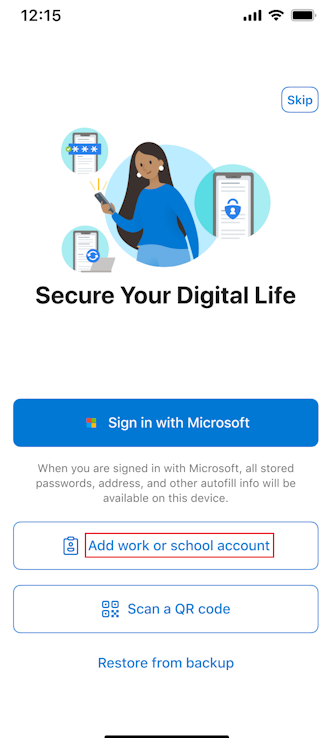
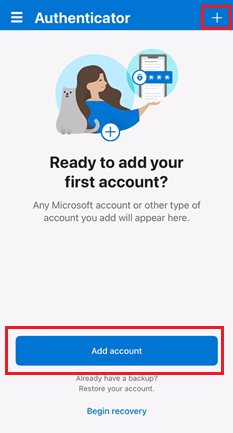
- If this is your first time using Authenticator, select Add work or school account.
- If you already use Authenticator but your BEMO account is not listed, select + > Work or school account > Sign in.
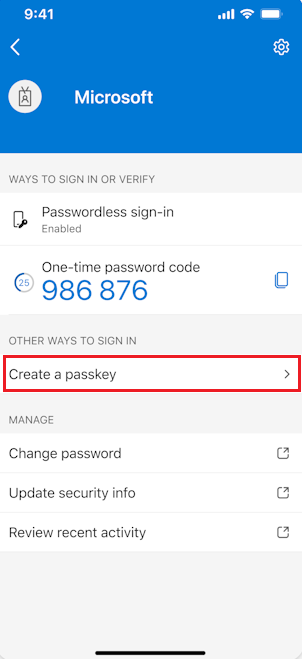
- If your BEMO account is already listed, select your account and then select Create a passkey.
Step 2: Verify Your Identity
Complete the authentication request when prompted.
If your device requires it, Microsoft Authenticator may also ask you to configure a screen lock.

Step 3: Enable Microsoft Authenticator for Passkeys
When Microsoft Authenticator prompts you to enable it as a passkey provider, select Settings.
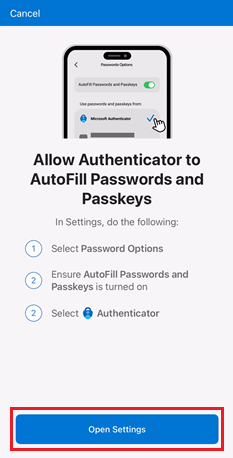
For iOS 18:
Settings > General > AutoFill & Passwords
For iOS 17:
Settings > Passwords > Password Options
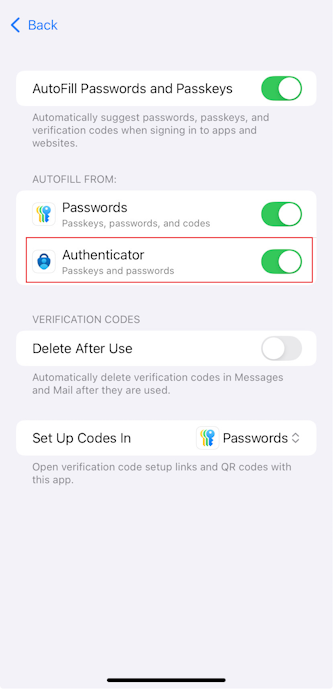
Make sure:
- AutoFill Passwords and Passkeys is turned on.
- Authenticator is selected under AutoFill From.
Step 4: Complete the Setup
Return to Microsoft Authenticator and select Done.
You should now see Passkey listed as a sign-in method for your BEMO account.
Select Done again to finish.

Android
Your device must be running Android 14 or later.
Step 1: Open Microsoft Authenticator
Open the Microsoft Authenticator app on your Android device.
- If this is your first time using Authenticator, select Add work or school account.
- If you already use Authenticator but your BEMO account is not listed, select + > Work or school account > Sign in.
- If your BEMO account is already listed, select your account and then select Create a passkey.
Step 2: Verify Your Identity
Complete the authentication request when prompted.
If required, Microsoft Authenticator will ask you to configure a screen lock.
Step 3: Enable Authenticator as a Passkey Provider
When prompted by Microsoft Authenticator, select Settings.
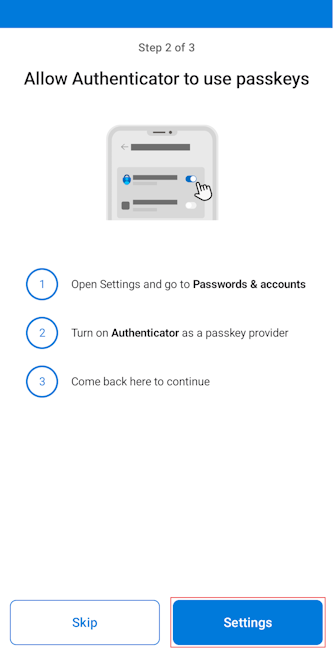
The exact location of these settings may vary depending on your Android device manufacturer.
Open Passwords & accounts.
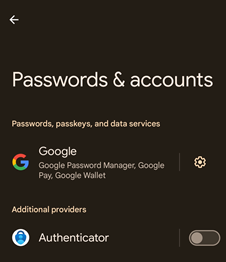
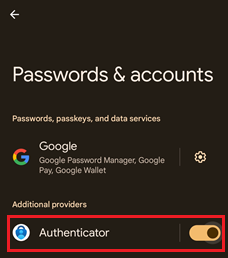
Under Additional providers, make sure Authenticator is selected.
Step 4: Complete the Setup
Return to Microsoft Authenticator and select Done.
You should now see Passkey listed as a sign-in method for your BEMO account.
Select Done again to finish.
Need Help?
If you experience any issues while setting up your passkey, please contact the BEMO Support Team for assistance.
Microsoft Reference: Register passkeys in Authenticator on Android and iOS devices
Comments
0 comments
Please sign in to leave a comment.